


Universal Smart Tv Remote Ctrl
3.0106.00 Reviews
App Specs
- Version
- 2.1.0
- Updated On
- License
- Free
- Downloads
- 1,000,000+
- Developer
- Firehawk
- Categories
- House & Home
- Platform
- Android
Screenshots
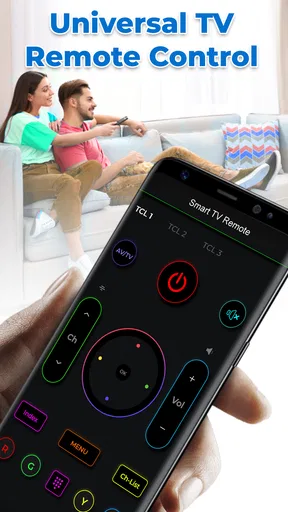
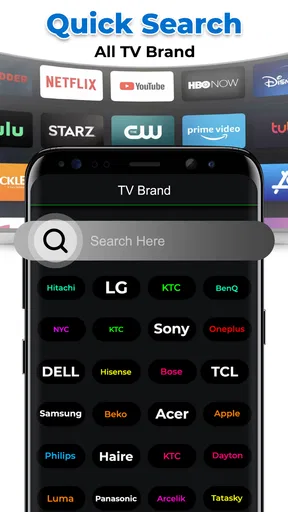
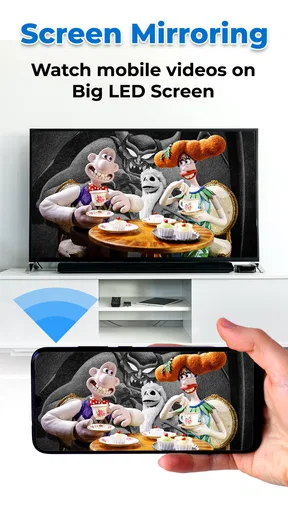
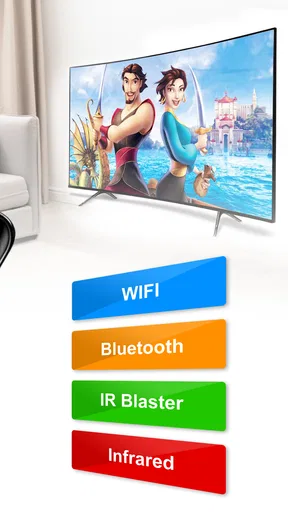
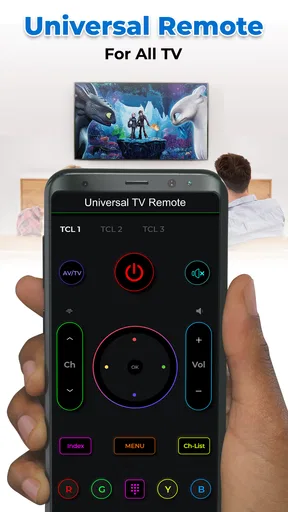
 Analysis by AppCompare
When the physical remote vanishes just as I settle in to watch something, reaching for my phone is a practical fallback. Universal Smart Tv Remote Ctrl is a free House & Home app from Firehawk that aims to put TV controls in one place. In my experience, the idea is appealing, but a phone can only replace a remote when the television and connection cooperate. I’d treat this as a useful backup rather than assume it will work with every setup.
What to check before relying on it
The first question I’d ask is whether my particular TV can communicate with the app. “Universal” is a broad promise, not a guarantee that every television, network arrangement, or control method will behave the same way. Before planning to leave the original remote in a drawer, I’d install the app while that remote is still nearby and try the basic controls. That quick test can reveal whether the app is a fit before I need it in a hurry.
I’d also check that my phone and TV are in a position to communicate over the home network. The published experience described for the app depends heavily on Wi-Fi, so a weak or unstable connection can undermine the convenience. If the TV is on a guest network, isolated from other devices, or simply getting an unreliable signal, it may be worth checking the home network setup rather than repeatedly tapping the same button and hoping for a response.
Where a phone remote earns its place
The best everyday role for this kind of app is as a backup that is already in your hand. Imagine starting a show, reaching for volume, and finding the remote wedged somewhere under the sofa. If the app is installed and connected, using your phone may be quicker than pausing to search the room. It is also handy when someone has carried the physical remote into another room or left it on a shelf that is inconvenient to reach.
There is a trade-off, though: a phone is not always a better remote. A physical one has dedicated buttons you can find by touch, and it does not compete with messages, calls, or a low battery. When I’m watching for a long time, especially with frequent channel or volume changes, a familiar handset can feel more immediate. I see the app as a way to reduce the consequences of a missing remote, not necessarily a reason to discard one that works well.
Choosing between app controls and the original handset
Compared with a television maker’s own remote app, a universal option is attractive when I want one place to try controlling more than one compatible device. The manufacturer’s app may be a better fit when I mainly use one brand and want a tool designed specifically around it. The physical remote remains the simplest choice for guests, children, or anyone who does not want to unlock a phone and open an app just to pause a program.
A useful way to judge the app is to test the actions you actually use rather than assume that a long feature list matters equally to everyone. Try power, volume, navigation, and whatever controls are important in your household. If those work consistently, less-used options become a bonus. If an essential control is unreliable, keeping the original handset close is sensible, even if the app can handle occasional tasks.
Worth Reading Before You Choose

Flipboard Shows What News Apps Must Do Beyond the Feed

Switching to Android Auto Means Rethinking Your Driving Routine

Google Calendar Makes a Crowded Week Easier to Manage

Ludo King Makes the Most of the Minutes Between Plans

Baby Panda World Brings Quick Play to Modern Phones, but Its Game Library Feels Busy

ESPN’s Live Game View Makes Following Close Games Easier
Who is likely to find it useful
I’d recommend giving it a try if you often misplace the remote, want a phone-based backup, or prefer to test whether one app can simplify control in a multi-device living room. It is less compelling if your current remote is always nearby, if you dislike using your phone while watching, or if your TV and home network do not work smoothly together. The app is free to install, but it also offers in-app purchases, so I’d check the purchase details shown in the app before paying for anything.
It is rated for Everyone, and its current version is 2.1.0; it runs on Android 5.0 and later. The app has an average rating of 3.0 from around 3,600 ratings, with over a million installs. Those figures suggest that many people have tried it, while the middling average is a reason to set realistic expectations rather than assume every setup will be trouble-free. It first appeared on August 26, 2021, and has 106 written reviews.
Setting Up and First Impressions
Getting started with the Universal Smart TV Remote Ctrl app is a breeze. After downloading it from the app store, you’re greeted with a clean and intuitive interface. The app quickly scans for compatible smart TVs in your vicinity, and voilà, you’re connected. The setup is straightforward, and even if you’re not tech-savvy, you’ll likely find it easy to navigate. I was impressed by how quickly it identified my TV model and paired with it seamlessly.
Features Galore
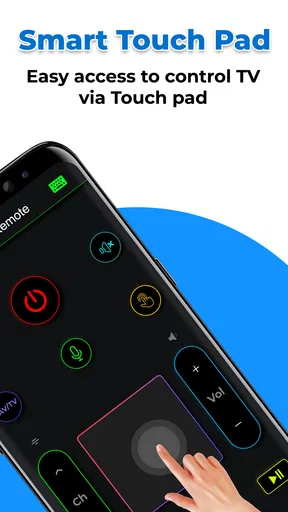
Once you’re all set up, it’s time to explore the features. The app offers a wide range of controls – from changing channels and adjusting volume to accessing smart features like streaming apps and voice commands. One of the standout features is the touchpad option, which allows you to swipe and navigate just like a traditional remote’s touchpad. It feels surprisingly natural to use, much like swiping on your phone.
Another highlight is the app’s ability to serve as a universal remote for multiple devices. So, if you’ve got a sound system or a smart light connected to your TV, you can control all of them from this single app. It’s a handy way to declutter your living room from multiple remotes.
Performance and Usability
I tested the app on a couple of different smart TV brands, and it performed admirably in most cases. The response time is swift, and there’s minimal lag between pressing a button on the app and seeing it reflected on the screen. However, I did notice a slight delay with some older TV models, but nothing too disruptive.
One thing to keep in mind is that the app relies heavily on your phone’s Wi-Fi connection. If your network isn’t stable, you might experience some connectivity issues. But with a strong Wi-Fi signal, the app works like a charm.
Design and Interface
The design of the app is sleek and modern, focusing on functionality without overwhelming you with too many options at once. The buttons are large and clearly labeled, making it easy to find what you’re looking for. The app also supports a dark mode, which is a nice touch for night-time TV sessions.
I particularly appreciated the customizability of the interface. You can rearrange buttons to suit your preferences, which is great if you have specific go-to functions you use frequently. It’s little touches like these that enhance the overall user experience.
Final Thoughts
In a world where losing the TV remote seems to be a universal issue, Universal Smart TV Remote Ctrl steps in as a lifesaver. It’s not just about convenience, though; it’s about enhancing the way you interact with your smart TV. While there are a few minor hiccups, particularly with older models, the app generally lives up to its promise of being a reliable and versatile remote control.
For anyone looking to simplify their home entertainment setup, this app is definitely worth a try. It’s easy to use, packed with features, and, most importantly, it works. And hey, next time your remote goes MIA, you know you’ve got a backup plan right in your pocket.
Making the connection dependable
For smoother day-to-day use, I’d pair the app with a simple routine: connect it while the TV is on, test the controls I rely on, and leave the phone somewhere I can reach without interrupting the evening. If the connection drops, I’d first check whether the phone and television are still on the same usable home network, then reopen the app and try again. Repeatedly pressing controls during a connection problem can make it hard to tell whether commands are delayed or not reaching the TV at all.
Performance expectations should stay modest. A remote app does not need to be demanding in the way a game or video editor can be, but it does depend on the phone being available and the network path working. I would not judge its speed only by the initial pairing; the more useful test is whether basic commands respond predictably after the TV has been idle or the phone has been used for something else. If quick, tactile response is essential, the original remote remains the safer option.
Small workflow choices that matter
One practical tip is to keep the app easy to reach on the phone rather than burying it in a folder. The point of a backup is that it is ready when the remote is not. Another is to decide which controls deserve priority: navigation and volume may matter every night, while less-used functions can remain secondary. This keeps the phone-based routine simple and helps reveal early if a key control is missing or awkward in your setup.
In a shared home, I would also consider who needs to use the television. An app can be convenient for the person who installed and connected it, but it may not be the easiest option for a visitor who expects a physical handset. Keeping the original remote in a known place avoids turning a quick pause into a lesson in phone setup. For a household that shares viewing duties, the app works best as an additional route to control, not the only route.
Performance verdict
My overall view is that this is a practical experiment for people who want a phone-based fallback and are willing to test it with their own television. Its value comes from being available at the moment a remote goes missing, not from replacing every advantage of dedicated hardware. The reported quick response and straightforward setup are encouraging, while network dependence and the less consistent experience with older TVs are meaningful limits.
Firehawk’s app has enough appeal to justify trying it if the idea fits your living room, especially because installing it is free. I would verify the everyday controls before relying on it, keep a physical backup for guests or network trouble, and avoid paying for an in-app item until I understand exactly what it adds. With those expectations, it can be a useful convenience; without a compatible, steady connection, a standard remote or a TV maker’s own control app is likely the less frustrating choice.
Pros
- Wide compatibility across TV brands.
- User-friendly interface and easy setup.
- Supports voice commands for convenience.
- Customizable remote layout options.
- Quick response time for commands.
Cons
- Contains in-app ads that can be intrusive.
- Limited features in the free version.
- Requires Wi-Fi for full functionality.
- No support for older TV models.
- Occasional connectivity issues reported.
FAQs for Universal Smart Tv Remote Ctrl
What devices are compatible with Universal Smart TV Remote Ctrl?
Universal Smart TV Remote Ctrl is compatible with a wide range of smart TVs, including popular brands like Samsung, LG, Sony, and Panasonic. It also supports devices like Roku, Amazon Fire TV, and Apple TV. Ensure your smartphone and TV are connected to the same Wi-Fi network for seamless functionality.
How do I set up Universal Smart TV Remote Ctrl on my device?
To set up Universal Smart TV Remote Ctrl, first download and install the app from the Play Store or App Store. Open the app, and it will automatically scan for compatible devices on your Wi-Fi network. Once detected, select your TV and follow the on-screen instructions to complete the pairing process.
Is Universal Smart TV Remote Ctrl free to use?
Universal Smart TV Remote Ctrl offers a free version with essential features. However, there is a premium version available through in-app purchases that unlocks additional features such as ad-free usage, enhanced compatibility, and customizable remote controls for a more tailored experience.
What features does Universal Smart TV Remote Ctrl offer?
Universal Smart TV Remote Ctrl provides users with a wide array of features, including the ability to control volume, change channels, and navigate apps on your TV. Advanced features include voice command support, personalized remote layouts, and the ability to mirror your smartphone’s screen to your TV.
What should I do if the app doesn’t work with my TV?
If Universal Smart TV Remote Ctrl isn’t working with your TV, ensure that both your phone and TV are connected to the same Wi-Fi network. Check for any available updates for the app or your TV’s firmware. If issues persist, consult the app’s support section or contact customer service for assistance.


